Request parameters
Defining request parameters
To pass parameters to the api we will use similar syntax like the one we use to define the requests.
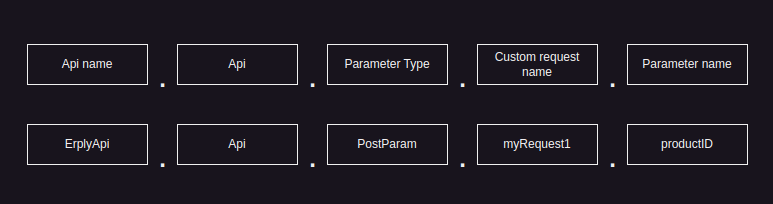
The custom request name here should match exactly the one we used to define the request.
In the following example we add the query parameter currencyId for the request we defined as myReportsCall
Default static values
Similar to the way we can give default values to requests we can also give default values to parameters.
Note that the values here are static meaning that we cannot add placeholders to the data-preset-val attribute. The value is being saved on template save time and will not change during the page view process.
If the browser passes a parameter to the same value it will overwrite the preset value.
Parameter types
Parameters are passed either via query or as post parameters. Samples here are generated into form inputs, but they can as well be used in url query parameters (name=value).
Query
We define the query type with the type name Query
If we do not want to lose the value from the form field we can set the value to read from the request.
This means the input will keep its value after the possible form submit and page reload
QueryBulk
Allows to pass as many query parameters as needed using one input. Parameter name here doesn’t matter
actually as it would be ignored anyway, but we can always name it url just to make it clear to read
And to access those parameters just use the same Queries field like with regular Query parameters
PostParam
Mostly for api’s that use urlencoded parameters or multipart/form-data (example: ErplyApi). Supports file uploading as well.
PostParam also used with FTP related calls to pass additional parameters like username, password and path.
We define the query type with the type name PostParam
If we do not want to lose the value from the form field we can set the value to read from the request.
And to uploading the file:
Header
We define the query type with the type name Header
If we do not want to lose the value from the form field we can set the value to read from the request.
Path
If the api expects one of the parameters to be a path parameter we would define the request with a placeholder and follow it up with a value for this placeholder.
Note here that the placeholder in the request definition needs to match that of the parameter name.
If we do not want to lose the value from the form field we can set the value to read from the request.
Json
Json inputs can be composed in a couple of different ways.
Input construction
With this method we will construct json with multiple input fields.
We also need to define the type of the field for the json constructor. Type is given just
before the parameter name. In many cases parameter name may represent the xpath in json, like
string.inner.name will result in {"inner":{"name":""}}
Omitting key definition after the dot will result in setting input value as a root object to the json body.
Supported values
string- result: ({"name":"foo"})number- result: ({"name":123})boolean- result: ({"name":true})json- result: ({"name":{"foo":"bar"}}). Allows to set any json structure.delete- (special case to delete entire path from the json, value of the input would be ignored because only path is needed)
This sample would generate a json object like this
Adding multiple fields
This sample would generate a json object like this
We can also define nested field
This sample would generate a json object like this
When one of the fields is of type array
This sample would generate a json object like this
The number indicates the index of the array, knowing this we can construct the input with specific indexes
This sample would generate a json object like this
Creating an array of objects to input.
This sample would generate a json object like this
Set entire json as a root object:
Will generate payload like this:
Json input manipulation options
Starting from version 1.201.1, GoErp allows to make json modifications more flexible, like predefined json, connecting json parts from another request and many more. Check how it works with CAFA sample.
Raw
To send some custom data to the api endpoint that does not use a specific format (json, post params etc). Note that the key name here is not important (myCustomData) and it will not be used in the request.
Franchise
Usable for franchise accounts. Where the HQ account can make calls against certain stores. Note that the user on the HQ account needs to have access to the specified store through the multi account users feature.
Using the value here will run the api call against that specific franchise account store.
Cache
Can be used to speed up page loads by caching certain api calls that do not use any parameters and are used mostly to fill selections. Items will be stored against the session and will refresh automatically within 1 hour (this can be altered with the duration parameter).
Define the cache key with a value of 1 to use the cache features. Adjusting the value to 0 or removing the key will disable the feature.
Refresh cached results
Send the following parameter once to refresh the cached content for that request
Set custom duration
Optionally you can set a different duration for the cached elements (in seconds). This works together with the cache parameter and needs to exist when the data element is created.
If this value is not provided then the data will be cached by default for 3600 seconds.